Connect desktop, browser, and mobile clients
All clients connect to one single-user workspace and the same persistent project tree under /workspace/projects. They share files, Git checkouts, persistent CLI configuration, and supported provider-session artifacts. Separate editor windows do not share UI state such as tabs, selections, cursors, or terminals.
This guide assumes the instance has passed the release checks. The current Railway deployment and Marketplace listing are not verified. See release status and first login.
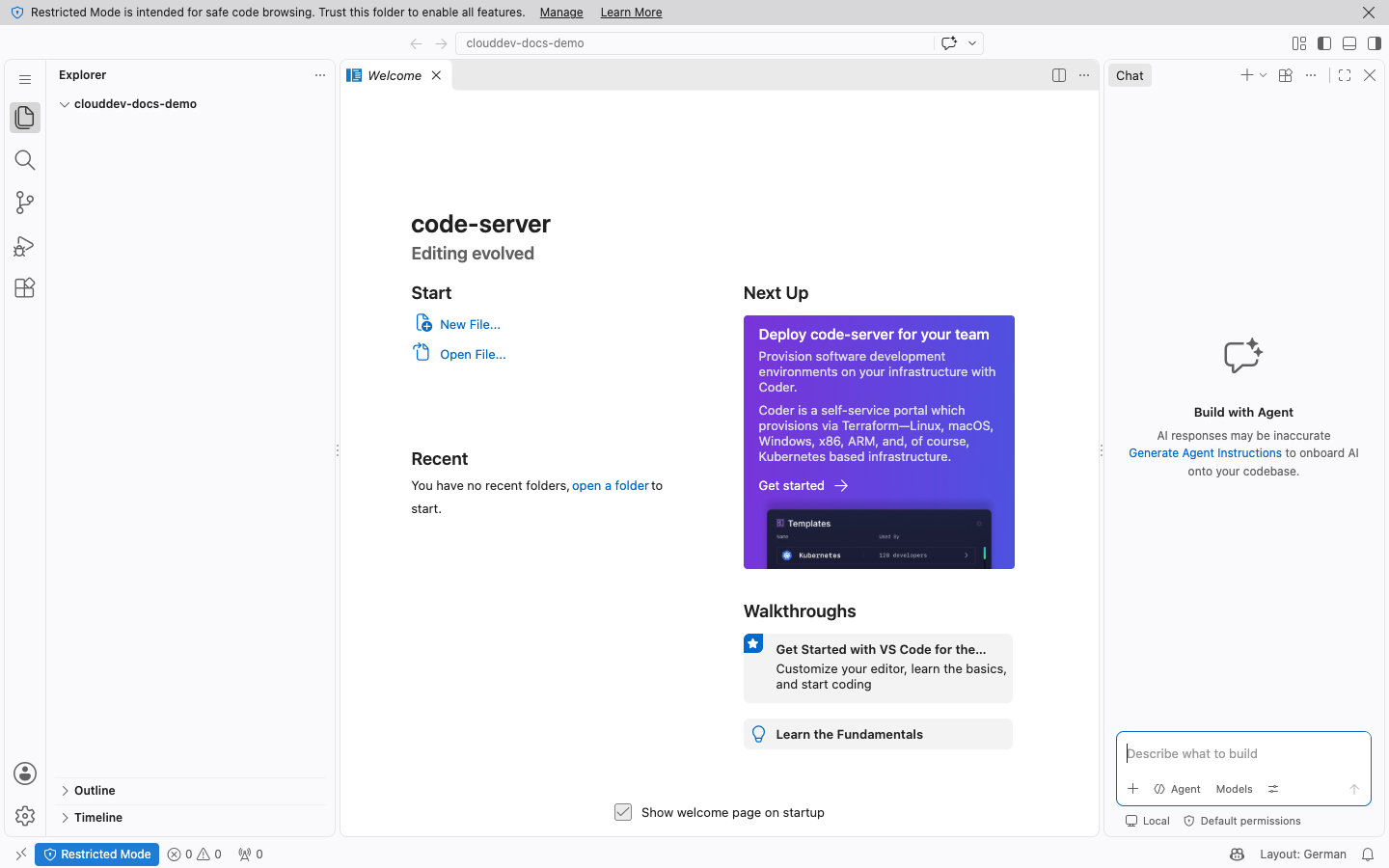
Browser VS Code
- Sign in to the workspace launchpad in your browser.
- Click Browser VS Code. The authenticated code-server interface opens at
/vscode/. - Open
/workspace/projectsin the file picker or clone a private Forgejo repository there. - Use Terminal → New Terminal to run
ai-status,ai-models,ai-codex,ai-claude,git, andclouddev-tasks.
Native VS Code on macOS or Windows
Remote-SSH uses the explicitly provisioned SSH service and Railway TCP proxy. It does not use railway ssh.
- Install Microsoft's Remote - SSH extension in native VS Code on your computer.
- Sign in to the workspace launchpad in a browser, then find Connect with VS Code Remote-SSH under the Desktop section.
- Copy the
clouddevSSH configuration block shown there. It contains the configured proxy host and port. If the block is absent, the operator has not configured the SSH TCP proxy; do not guess a hostname or port. - Keep the matching private key on your computer. Set its local path as
IdentityFilein your SSH config and retainIdentitiesOnly yes. The public key must be inSSH_AUTHORIZED_KEYSfor this workspace. - In VS Code, open the Command Palette, choose Remote-SSH: Connect to Host…, then select
clouddev. - Open
/workspace/projectsin the remote window.
The operator provisions public SSH keys. Never send the matching private key to Railway variables, the repository, or the agent. The launchpad may show a host fingerprint when it is configured. Verify that fingerprint when your client prompts you.
iPhone and Android browser
- Open the same workspace HTTPS origin on your phone and sign in with the workspace password.
- Click Open CloudCLI to use its mobile-first conversation and task-history interface.
- Sign in to the separate CloudCLI account if asked. Open a project or provider session from its supported history.
- Use Browser VS Code when you need the editor and terminal in a mobile browser. Small screens may make a desktop editor harder to use; CloudCLI is the mobile-oriented client.
The launchpad cards and service URLs are generated from the workspace's configuration. Do not copy an OmniRoute dashboard address or service credential into a public URL or chat.
Start and reconnect to an agent task
From an interactive VS Code terminal, run ai-codex or ai-claude. Terminal tasks use a managed session so the work can continue after the browser or desktop disconnects, while the workspace process and provider remain available.
Run clouddev-tasks to inspect recorded work. For a terminal task still marked running, use:
clouddev-tasks --attach <TASK_ID>
This attaches to the active terminal task. It does not relaunch a stopped process.
After a workspace restart, the old process is gone and its registry record is marked interrupted. Open CloudCLI and select the recent provider conversation. Resume only if that provider offers a supported manual resume action. If the conversation is unavailable or cannot resume, review the task record and start a new task. CloudDev does not automatically replay prompts.
Connect model providers through OmniRoute
- Click Manage AI providers on the authenticated launchpad and sign in to OmniRoute separately.
- Add provider credentials using an integration documented by the installed OmniRoute release. Keep the provider key in OmniRoute.
- Create a scoped inference key, then run
ai-setupin the workspace terminal and choose a model from the current catalog. - Confirm the selection with
ai-statusandai-models. A model absent from that catalog is not available to this workspace key.
For the full provider workflow and version-specific compatibility limits, read connect an AI provider and the provider compatibility reference.
DeepSeek
DeepSeek documents an OpenAI-compatible API at https://api.deepseek.com and lists current model identifiers in its API quick start. Use that endpoint only if the installed OmniRoute release supports the corresponding documented provider or OpenAI-compatible provider setup. Add the DeepSeek key inside OmniRoute, not in ai-setup or the agent environment. Then run ai-models and select only a model returned by the gateway. Check DeepSeek's current pricing and model details before sending requests.
The model list, availability, feature support, and prices can change. Free tier availability is set by each provider and is not guaranteed or included by CloudDev AI.
ChatGPT and OpenAI API billing
A ChatGPT subscription does not provide OpenAI API usage or API credits. OpenAI maintains separate billing for ChatGPT and its API platform. Use a provider integration and credentials that the provider and OmniRoute officially support. Do not use browser cookies, copied sessions, account rotation, or another workaround to bypass quotas, paid usage, rate limits, or service terms. Read OpenAI's billing guide before configuring an API account.
Credential and network limits
The agent can read the scoped inference key it uses and can make outbound requests from the workspace. It does not receive provider master keys, OmniRoute management secrets, a Forgejo administrator token, or a Railway token. Railway Private Networking does not act as outbound network filtering. Review the threat model before opening untrusted repositories.
CloudDev does not promise universal provider or model support. Free allowance and resumable-session behavior are not universal. Availability and usage limits belong to each upstream service. CloudDev does not increase or bypass them.