Connect an AI provider
This guide connects a provider to the private OmniRoute service, then configures CloudDev's Codex and Claude Code wrappers with a scoped gateway key. The provider credential stays in OmniRoute. The workspace receives a separate key for model discovery and inference.
For protocol-specific support and test boundaries, see Provider compatibility.
Before you start
- Deploy CloudDev and open its authenticated workspace launchpad.
- Have an API credential for the provider you want to use. A ChatGPT plan is not an OpenAI API key.
- Keep provider master keys, Railway tokens, Forgejo administrator tokens, and OmniRoute management credentials out of the IDE terminal, Git, and project files.
- Remember that an agent running as the workspace user can read its own scoped inference key. Mode
0600protects the key from other local Unix users, not from the agent process that needs it.
Add a provider in OmniRoute
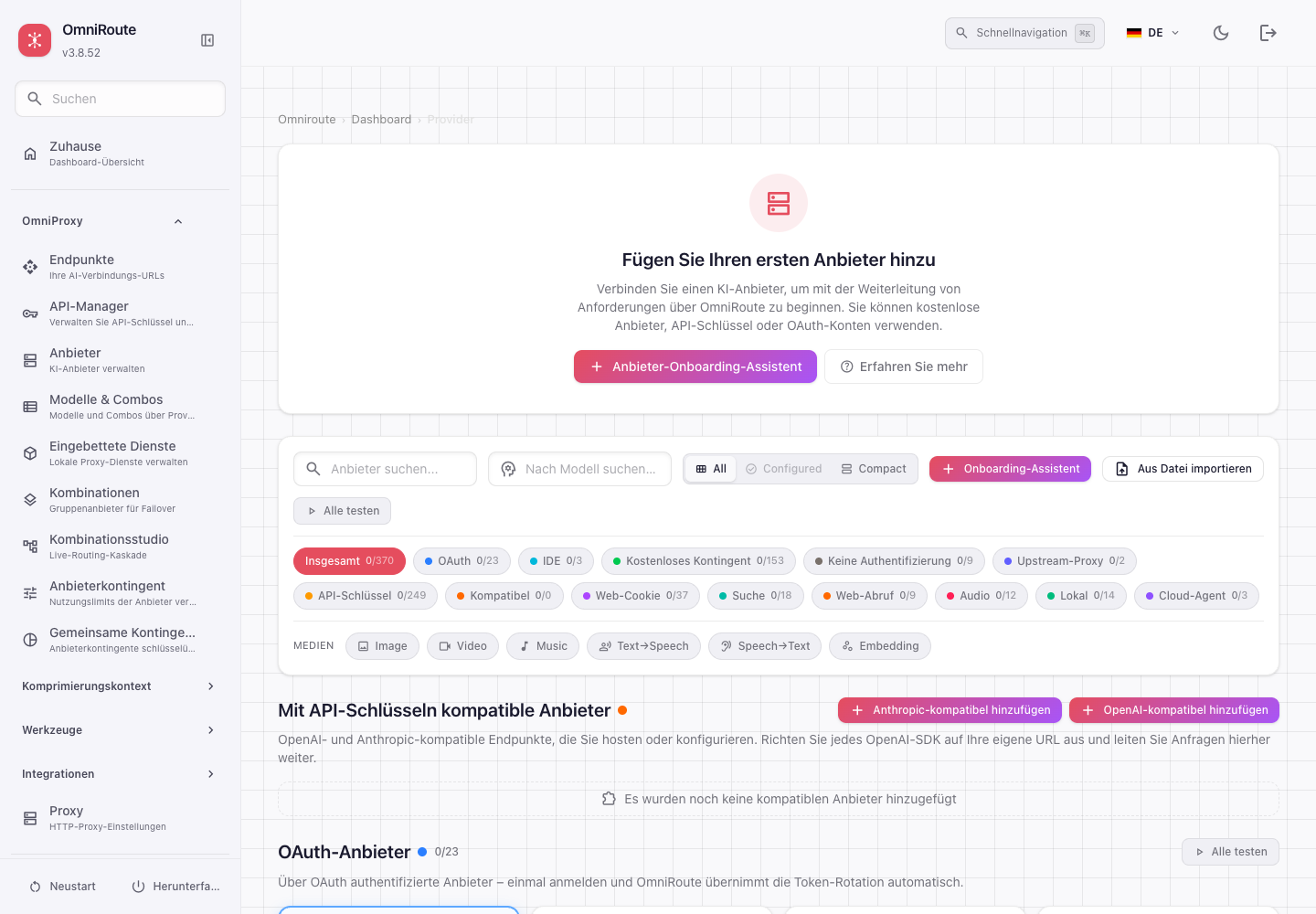
- From the authenticated CloudDev workspace, open OmniRoute. Sign in to its native dashboard if asked. The workspace login and OmniRoute login are separate.
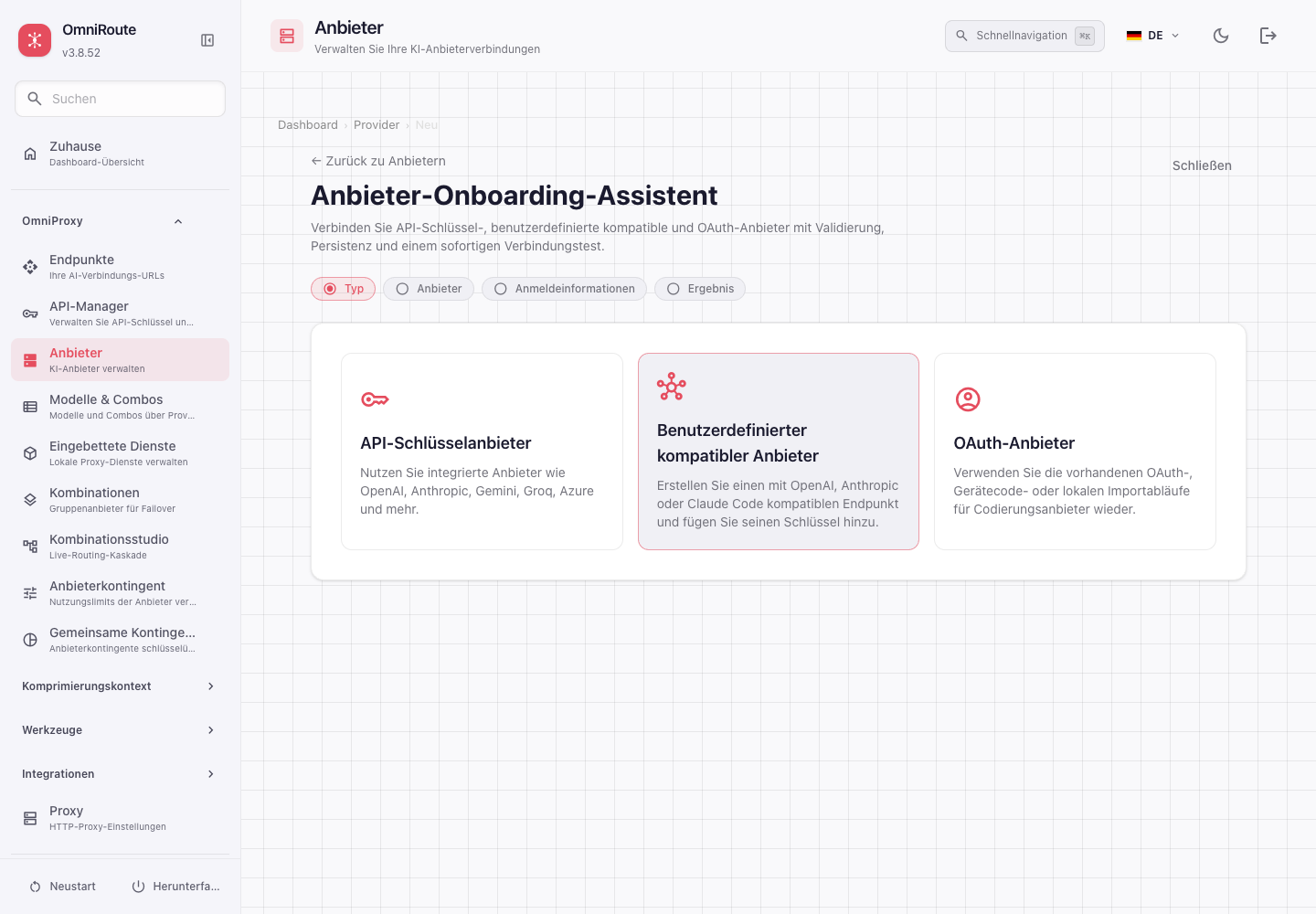
- Open Providers, then choose Add Provider.
- Select a provider from the live list. For DeepSeek, use the built-in
deepseekprovider in the pinned OmniRoute 3.8.52 registry if it is available in the dashboard. For another OpenAI-compatible API, select an officially supported provider or use a custom provider only when OmniRoute documents that path. - Enter the provider's own API credential into OmniRoute's provider connection form. Do not put it in Railway variables,
ai-setup, a shell command,.env, or a repository. - Use OmniRoute's provider connection test if the dashboard offers it. Confirm the connection is active and synchronize or refresh its model catalog using the dashboard controls.
- Check the provider's current protocol and model capabilities. Do not assume a model supports both Codex and Claude Code because it appears in the catalog.
The OmniRoute upstream guide describes the provider flow as Dashboard → Providers. OmniRoute 3.8.52 also supports API-key model and connection policies. Use the narrowest model/connection access, rate limit, and expiry controls available to your key. Do not enable an unrestricted policy just to make a model appear.
Create the workspace inference key
- In OmniRoute, open Endpoints or API Keys, depending on the dashboard label in the pinned release, and create a separate key for CloudDev agents.
- Restrict it to only the required models and provider connections when the current key policy controls allow this. Do not grant provider-management or dashboard-administration access to an agent key.
- Keep the generated value available for the next step. It is an OmniRoute inference credential, not the OpenAI, Anthropic, or DeepSeek provider key.
- If you cannot tell which permissions a key receives, stop and inspect the key's policy before using it. Do not assume that a key is inference-only based on its label.
OmniRoute's key policy source at v3.8.52 lists model and connection access controls. The project mock test also creates a test key restricted to named models and connections. The actual controls available to an operator should be verified in the deployed dashboard.
Configure CloudDev
- Open an interactive terminal in the IDE. Run:
ai-setup
- Keep the prefilled private OmniRoute URL unless the deployment's service address has changed.
- Paste the OmniRoute inference key when prompted. Input is hidden. Do not pass the key as a command-line argument or save it in a project file.
- CloudDev checks the authenticated chat-model catalog at
/v1/models?kind=chat. Select a current listed model for Codex, Claude Code, or both. Choose each model only if its protocol and provider documentation support that agent's request path. - CloudDev stores the gateway URL, inference key, and model selections in the persistent home at
~/.config/clouddev-ai/gateway.jsonwith mode0600. Codex and Claude Code receive the key at process launch through their environment. The provider master key is not copied into the workspace. - If the model list is empty, finish connecting the provider or adjust the key's allowed models in OmniRoute, then run
ai-setupagain.
CloudDev's ai-setup is its own guided setup command. It is not the same as OmniRoute's upstream omniroute setup-codex or omniroute setup-claude commands. The upstream commands fetch a live catalog and write CLI profiles; CloudDev configures its wrappers and persistent gateway file instead.
Verify the connection
Run these commands in the IDE terminal:
ai-status
ai-models
ai-status checks the private gateway and selected agent models. ai-models lists chat models visible to the configured key. If the chosen model is listed and its provider has passed the OmniRoute connection test, send a short, non-sensitive request with the supported wrapper:
ai-codex
ai-claude
Use only the agent/model combination whose protocol is supported. Real provider calls may incur charges and send prompt/code context to that provider. Do not use private project content as a first test.
The local mock provider integration can verify request forwarding without provider credentials or paid requests. It runs against the local Docker Compose stack after the project services are available:
npm run test:mock-provider
The mock verifies the CloudDev CLI-to-OmniRoute path for Codex and Claude Code. It does not verify a live provider account, model quality, provider retention policy, or compatibility of every model.
Use DeepSeek
- Create an API key in the DeepSeek API key console. DeepSeek's API documentation specifies Bearer authentication.
- In OmniRoute, open Providers → Add Provider and choose the built-in DeepSeek provider if present. Add the DeepSeek API key to that connection and test it there.
- Refresh the DeepSeek catalog and check
ai-models. Use only a model currently visible to the CloudDev inference key. - Check the model's supported API format against the chosen CLI. OmniRoute 3.8.52's provider registry declares OpenAI chat-completions as the default DeepSeek format, and also declares OpenAI Responses-compatible and Anthropic-compatible formats. Those declarations are not a live DeepSeek acceptance test for this deployment.
- Review DeepSeek's current API prices before making a real request. DeepSeek API requests are billed per token, with input and output prices listed per one million tokens. Its price table can change. DeepSeek API access is not free.
The DeepSeek API is separate from its consumer chat website. A consumer-site free tier does not make API requests free and does not provide an API key.
OpenAI API and ChatGPT sign-in
To route Codex through OmniRoute, create an OpenAI Platform API key in the OpenAI API key dashboard, then add an OpenAI API connection to OmniRoute. Create the separate CloudDev inference key and select a compatible model in ai-setup. OpenAI API-key requests use standard API billing.
Codex can also sign in directly with ChatGPT. That is a separate sign-in mode. CloudDev does not route a ChatGPT subscription through OmniRoute, and this setup guide does not provide a subscription relay. If you choose direct ChatGPT sign-in for Codex, do not assume the request uses OmniRoute. Never copy browser cookies or Codex auth files to simulate another sign-in flow.
Free and no-key providers
The OmniRoute dashboard may list providers that do not require an API key or that offer a free allowance. Their availability, supported models, terms, quotas, and rate limits are controlled by the provider and can change. Check the live provider catalog and the provider's current terms before use. CloudDev does not promise a free route or a fixed model list, and does not support account rotation or quota/rate-limit circumvention.
Troubleshooting
| Symptom | Check |
|---|---|
ai-setup reports HTTP 401 or 403 |
Confirm the key is an OmniRoute inference key, is still active, and may access the model catalog. Do not use the provider master key here. |
ai-models is empty |
Check that the provider connection is active, that models have synchronized, and that the key's model policy includes an available chat model. Then run ai-setup again. |
| A model is listed but one CLI fails | The catalog is not a guarantee of protocol or feature compatibility. Check the provider's current API format and OmniRoute's model/provider mapping for that exact route. |
| Requests fail after changing provider keys | Update the provider connection in OmniRoute. If the inference key was rotated or revoked, run ai-setup again with the replacement key. |
| Usage or cost is unexpected | Check OmniRoute usage and provider billing directly. Review the selected model and current upstream price. Do not assume cached, no-key, or free routes have a fixed quota. |
Sources
- OmniRoute CLI tools
- OmniRoute CLI integrations at v3.8.52
- OmniRoute
setup-codexsource at v3.8.52 - OmniRoute
setup-claudesource at v3.8.52 - OmniRoute key policies at v3.8.52
- OmniRoute DeepSeek registry at v3.8.52
- OpenAI Codex authentication
- OpenAI API key dashboard
- DeepSeek API key creation and authentication
- DeepSeek API key console
- DeepSeek API pricing